Insta Pro Multi-Account Guide: Switching Without Mix-Ups
Insta Pro makes it easy to keep more than one Instagram account on the same phone. A personal profile, a hobby page and a test account can all stay logged in, and one tap moves between them. That saves a lot of time, but a few simple habits also help each post, comment and message land on the right account. This guide covers how to add accounts, how to switch, and how to keep everything clear. Anyone using the Insta Pro APK for the first time will find every step below in plain words.
 Multi-Account Guide
Why Use More Than One Account
Most people add a second account for one of these reasons:
- A personal account for friends and family
- A hobby or interest page, like cooking, travel or gaming
- A small business or work page that stays separate
- A test account for trying new settings first
One phone can hold all of them, and there is no need to log out each time.
How Multi-Account Works in Insta Pro
The Insta Pro Mod Version keeps several accounts logged in at the same time. Each account has its own feed, messages and notifications. Tapping another account swaps everything over, a bit like changing channels on a TV. Most builds work this way, though the screens can look slightly different. Some settings, like the theme or App Lock, usually apply to the whole app instead of one account.
Before You Start
The Insta Pro Mod APK Download page has the latest file, and newer builds keep account switching smooth. The steps below stay the same no matter which page was used for the Insta App Download. A few quick checks help before adding anything:
- Update the app if the download page shows a newer version.
- Keep each account’s username and password handy.
- Turn on two-step login for every account.
- Try the steps with a second account before adding the main one.
How to Add a Second Account
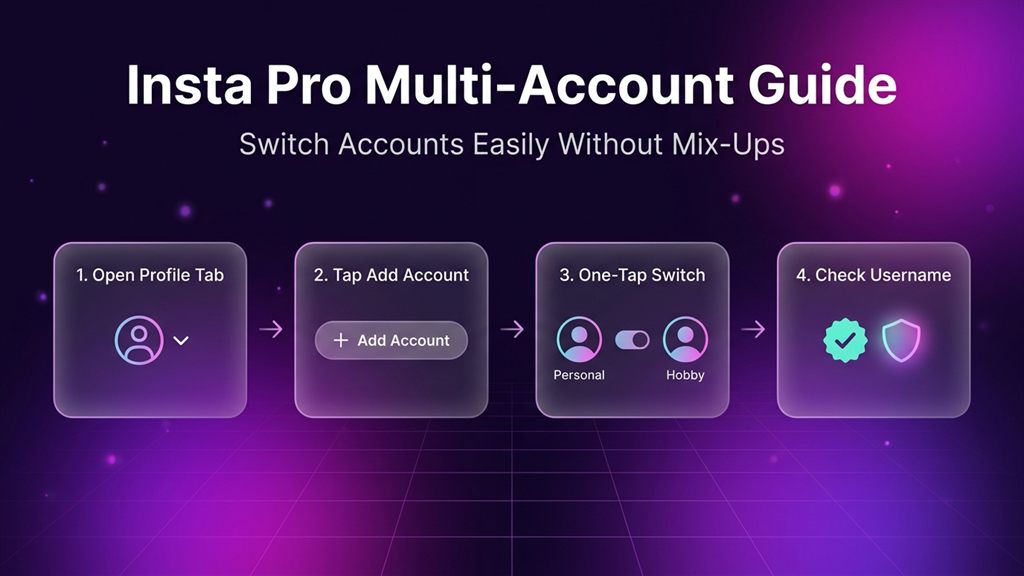
- Open the InstaPro app and go to the profile tab.
- Tap the username at the top, or long press the profile icon at the bottom.
- Choose Add account.
- Enter the username and password of the other account.
- Finish the login and enter any code the account asks for.
Menu names can differ slightly between builds, but the path stays close to this.
How to Switch Between Accounts
- Open the profile tab.
- Tap the username at the top, or long press the profile icon.
- Pick the account from the list.
- Wait a second for the feed to load.
- Look at the username at the top of the profile.
That last look takes two seconds, and it keeps every post and message on the right account.
Habits for Keeping Accounts Clear
- Use different profile photos. A clear photo for each account shows at a glance which one is open.
- Check the username before posting. Look at the top of the screen before sending a post, comment or message.
- Keep names easy to tell apart. Different usernames and bios help.
- Switch with purpose. Move between accounts when needed, not every few seconds.
- Keep App Lock on. One pin guards all the accounts.
Ghost Mode With Several Accounts
In most builds, Ghost Mode switches belong to the whole app, so they apply to every account. After switching, check the switches, especially before opening a story. If a story should be viewed quietly, confirm the switch first. A second account is a good place to test how the options behave.
Notifications: Which Account Is Calling
Notification text often shows the account name. Alerts for the account used less can be turned off in Settings, Apps, Insta Pro, Notifications. On Android 13 and newer, the app asks for notification permission at the first launch. Keeping alerts for messages and comments is usually enough.
Saved Media for Each Account
The download folder is set in the app settings. A simple system keeps files tidy:
- Make folders named for the accounts, like Personal and Hobby.
- Change the download folder before saving a batch, or move files with the Files app afterward.
- Sort the folders once a week and delete what is no longer needed.
- Give credit to the creator when sharing a saved post.
Safety Habits for Several Accounts
- Use a different strong password for each account.
- Turn on two-step login for each one. In Instagram, open Accounts Center, then Password and security, then Two-factor authentication.
- Check login activity once a month. In Accounts Center, open Password and security, then Where you’re logged in.
- Log out of accounts that are not needed on a shared phone.
- Log in to one account at a time and wait a moment between logins. Calm, steady logins work best.
How Many Accounts Work Well?
Two or three accounts are easy to handle. More accounts need more care with names, passwords and notifications. On a phone with 2 GB of RAM, fewer accounts keep things light. Adding one at a time makes it easy to see how the phone feels.
How to Remove an Account
- Open the account list from the profile tab.
- Open the settings and tap Log out for the account that should go.
- Confirm.
Logging out only removes the login from this phone. The account itself stays active on Instagram.
Quick Fixes
| What you see | Likely cause | Fix |
|---|---|---|
| Second account missing from the list | Login did not finish | Add the account again and finish any code step |
| Asked to log in again after an update | The update refreshed the session | Log in once and wait a moment |
| Feed loads slowly after switching | Full cache or low RAM | Clear the cache and close other apps |
| A post went to a different account | The username was not checked before posting | Edit or delete the post, then check the username next time |
FAQs
Yes. Several accounts can stay logged in, and one tap switches between them.
No. One install holds all the accounts.
Usually not. Themes and fonts apply to the whole app.
People use both names for the same kind of mod. The name to look for on the file is Insta Pro.
It works the same way. A business page can stay on the regular app until the mod feels familiar.
They go to the download folder set in the app settings. If no folder is set, check the gallery.
Final Thoughts
The Insta Pro application turns account switching into a one-tap job. Start with two accounts, give each a clear profile photo, and look at the username before posting. A few small habits keep everything tidy. For the file, the install steps and the full feature list, the download page and the main Insta Pro APK page have everything in one place.